
By Tim Blakley
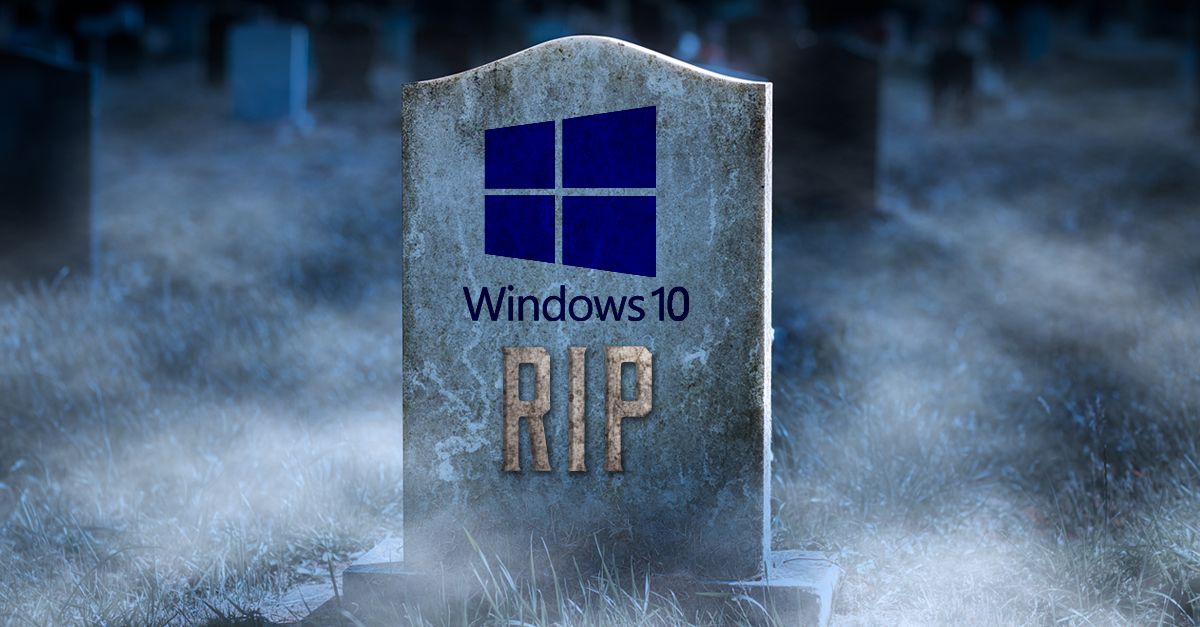
Microsoft officially ended standard support for Windows 10 on October 14, 2025. But if your business still has a few computers hanging on to Windows 10, you are not alone. And you probably do not need to update every one of them in a big hurry.
Microsoft has backed off a little on how aggressively it is pushing the transition. Extended Security Updates and longer support for certain Microsoft applications have given businesses more breathing room.
That is good news. It is not a reason to ignore the issue.
Did Microsoft Extend the Windows 10 Deadline?
No. October 14, 2025, was the official end-of-support date.
A Windows 10 computer will continue to turn on, access files and run software. The difference is that a standard Windows 10 installation no longer receives Microsoft’s regular free security and quality updates.
Microsoft has softened the end date through its Extended Security Updates program, commonly called ESU. Eligible computers enrolled in the program can continue receiving critical and important security patches while their users plan a move to Windows 11.
It may give your business more time to budget for replacements, test software or work through compatibility issues. Think of ESU as extra time, not an indefinite invitation to keep using Windows 10.
Is a Windows 10 Computer Unsafe?
Not automatically. A computer does not become dangerous the minute its support date passes. The problem is what happens after that.
As new security weaknesses are discovered, computers without current operating-system patches become harder to protect. The risk grows over time, especially when a device handles sensitive information, connects remotely or is used by someone with administrative access.
We are still seeing plenty of Windows 10 machines in business environments. The right response depends on the computer. Some can be upgraded. Some should be replaced. Others may be able to remain in service a little longer with the right security coverage and a defined retirement plan.
The important thing is to know which category each computer falls into.
What About Word, Excel and Outlook?
Microsoft has also provided additional time for Microsoft 365 applications running on Windows 10.
Security updates for Microsoft 365 Apps on Windows 10 are expected to continue through October 10, 2028, although new features are being phased out sooner on several update channels.
That helps, but there is an important distinction: keeping Outlook or Excel updated does not mean the Windows 10 operating system underneath them is fully supported.
Windows, Microsoft 365 and your other business software each have their own support schedules. One application continuing to receive updates does not protect the entire computer.
Can the Computer Be Upgraded to Windows 11?
Maybe. A computer can run Windows 10 perfectly well and still fail Microsoft’s requirements for Windows 11. Common sticking points include the processor, TPM 2.0 and Secure Boot.
Before replacing anything, we recommend checking:
- Whether the computer qualifies for Windows 11
- How old the device is
- Whether it is still under warranty
- What software and equipment depend on it
- Whether it has current Extended Security Update coverage
- What kind of information the user accesses
Sometimes an upgrade makes sense. Sometimes replacing the computer is the smarter use of budget. There is not much value in spending time forcing Windows 11 onto a machine that is already nearing the end of its useful life.
You Probably Do Not Need to Replace Everything at Once
For most small and midsized businesses, a phased approach is more practical.
Start with the computers that carry the most risk. That usually includes the ones used by owners, executives, administrators, accounting teams and employees who regularly work with confidential information.
Remote laptops may also need earlier attention because they spend more time outside the protection of the office network.
Next, look at computers tied to specialized applications, printers, scanners or equipment. Those devices often require more planning because the issue is not simply whether Windows 11 will install. The software or equipment connected to the computer also must work afterward.
Once you understand the environment, you can spread out replacements across several months or budget periods rather than turning the transition into one large purchase.
Do Not Let “A Little More Time” Become “We Forgot About It”
Microsoft’s changes have made the Windows 10 transition less abrupt than was first expected. That is helpful since it gives businesses time to make decisions instead of rushing out to buy computers that may not be necessary.
But the direction is still the same. Windows 10 is on its way out, and software and hardware vendors will increasingly focus their support on Windows 11. Waiting until a critical application stops working or a computer becomes a security problem usually costs more than dealing with it earlier.
The goal is not to replace everything immediately. The goal is to know what you have, understand the risk and create a reasonable timeline.
Still Running Windows 10? Start With an Inventory.
The first step is simple: find out how many Windows 10 computers your business still has and what condition they are in.
From there, Invision can help determine which devices can be upgraded, which should be replaced and which may safely stay in service a little longer.
Contact Invision to get a practical Windows 10 transition plan in place.